

Create a Google Cloud Project
Sign in to Google Cloud Console. If this is your first time, accept the Terms of Service when prompted. In the top navigation bar, click the project selector (it shows the current project name or “Select a project”) → New Project. Fill in the project details:- Project name: choose a descriptive name (e.g.
ironclaw) - Organization: leave as-is unless your account belongs to a Google Workspace org
- Location: leave as-is for personal accounts
Create a VM Instance
Navigate to Compute Engine → VM instances. If this is your first time using Compute Engine, you will be prompted to enable the Compute Engine API — click Enable and wait a moment.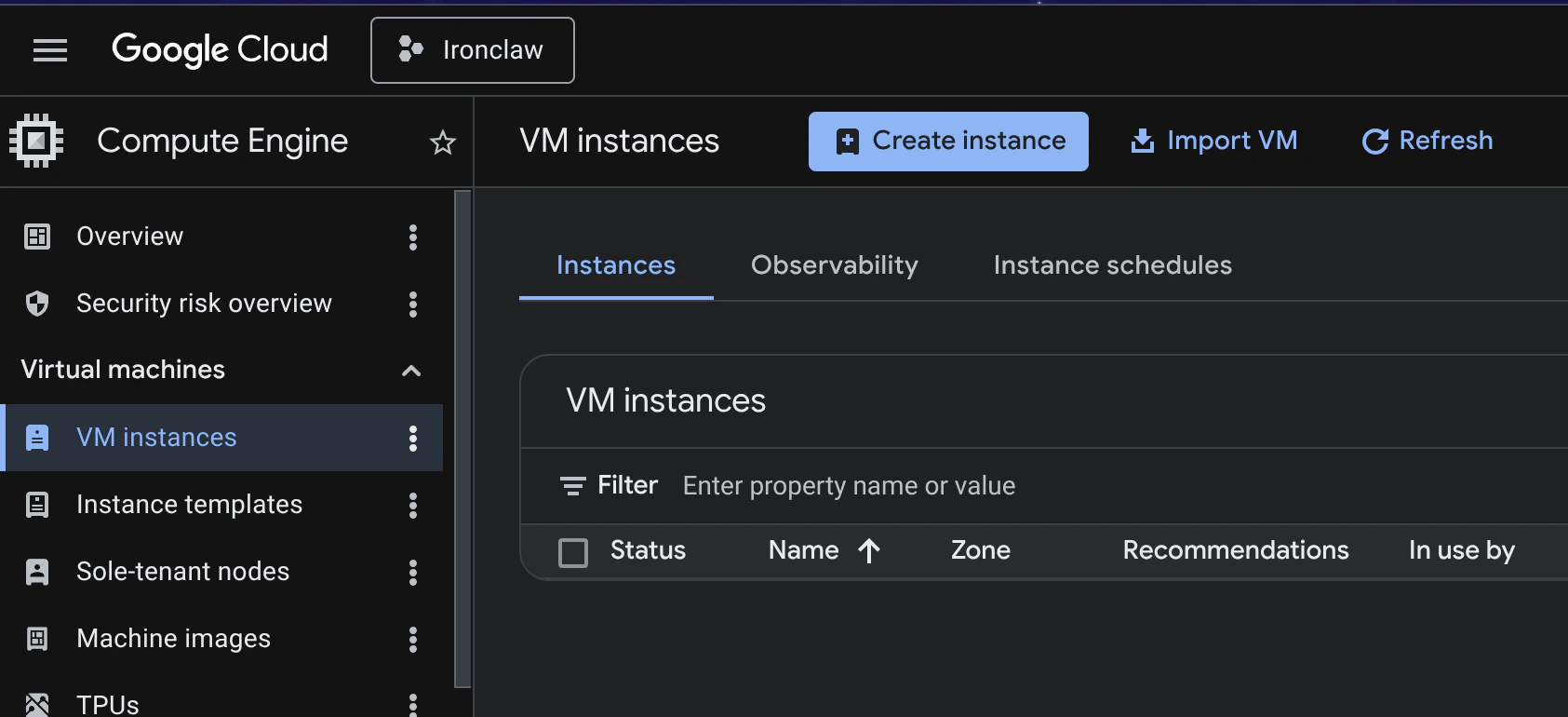
- Name: choose a descriptive name (e.g.
ironclaw) - Region / Zone: pick a region close to your users
- Machine type:
e2-micro(free tier eligible) is sufficient for most use cases, ore2-smallfor more headroom - Boot disk: Ubuntu 24.04 LTS, at least 10 GB
- Firewall: leave Allow HTTP traffic and Allow HTTPS traffic unchecked for now
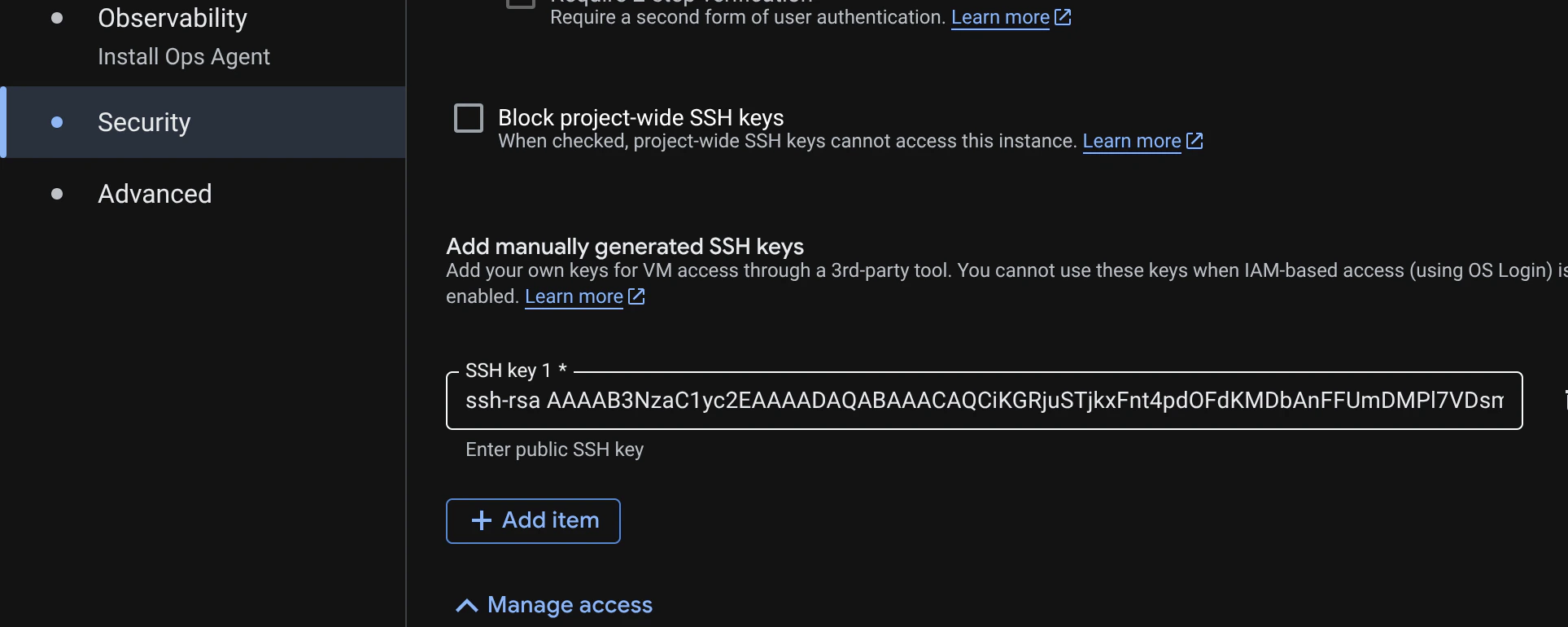
<type> <base64-encoded-key> [comment] (for example, ssh-ed25519 AAAA... your-email@example.com). GCE accepts multiple key types and adds the key to the instance automatically.
You could also log in with a password, but using SSH keys is more secure and recommended. Make sure to keep your private key safe and do not share it with anyone.
Access Your Instance
Once the instance is running, find its External IP in the VM instances list.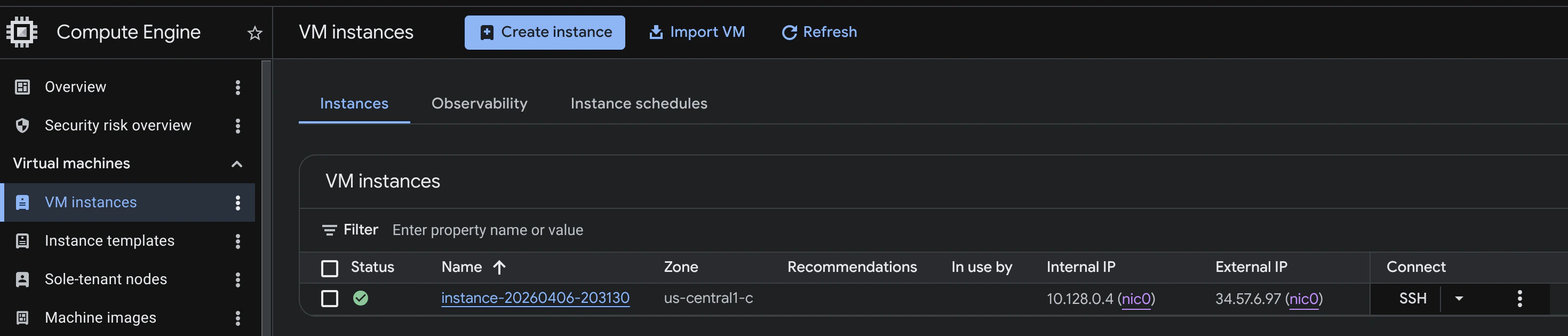
Configure Firewall Rules
IronClaw’s Web Gateway defaults to127.0.0.1:3000, which means it is local-only by default and not directly reachable from the internet.
Recommended exposure model:
- Keep the Web Gateway bound to
127.0.0.1:3000 - Expose public traffic with a reverse proxy on
80/443that forwards to127.0.0.1:3000 - Or keep the gateway private and access it through SSH tunnel/VPN
If you run a reverse proxy (recommended for public web access), also allow:
If you intentionally expose the gateway directly (generally not recommended), you must:
- Bind a public interface with
ironclaw serve --host 0.0.0.0(add--port <port>if not3000), or set[webui].listen_host/[webui].listen_portinconfig.tomlso the installed service picks it up - Set
IRONCLAW_REBORN_WEBUI_TOKEN=<strong-random-token> - Add a firewall rule for that gateway port, ideally restricted to trusted source IPs
127.0.0.1) and do not open the port in the GCE firewall.
Restricting SSH to your IP prevents brute-force attacks from the internet. You can update the source range later if your IP changes. Port
8080 is required for webhooks (e.g. Telegram) to deliver events to IronClaw. On Linux, the orchestrator internal API listens on port 50051 and binds to 0.0.0.0; unless you add a firewall rule for it, GCE’s default deny-all ingress policy will still block external access. Other IronClaw listeners bind to 127.0.0.1 by default.Secure Your Instance
Now that you have access to your VM, harden it before installing IronClaw.Update and Upgrade
Make sure the system is up to date:Create a New User
It is good practice to create a dedicated user with sudo privileges instead of relying on the default account. You can create a new user (for example,ironclaw) and add it to the sudo group:
Install IronClaw
With the server hardened, install IronClaw and start it up:onboard prints a login link for the web interface. On a remote host, forward the port
from your own machine rather than exposing it:
serve itself, so the two
cannot share the port: