> ## Documentation Index
> Fetch the complete documentation index at: https://docs.ironclaw.com/llms.txt
> Use this file to discover all available pages before exploring further.
# 快速开始
> 几分钟内创建您的智能体
本指南将帮助您在 10 分钟内从零开始运行一个 IronClaw 实例。
***
## 设置您的智能体
前往 [https://agent.near.ai/](https://agent.near.ai/) 并使用您偏好的方式登录,然后在私有实例中创建一个 IronClaw 智能体。
私有实例准备就绪后,您可以通过[智能体仪表盘](https://agent.near.ai/)提供的地址使用 `SSH` 连接到它:
```bash theme={null}
ssh -p liquid-horse@agent2.near.ai
```
使用 IronClaw 需要提供 SSH 密钥。如果您还没有,可以在终端中使用以下命令生成:
```bash theme={null}
ssh-keygen -t rsa -b 4096 -C "you@example.com"
cat ~/.ssh/id_rsa.pub
```
连接前请确保已将 SSH 密钥添加到设备的 SSH 代理中:
```bash theme={null}
ssh-add ~/.ssh/id_rsa
```
适合在自己的机器上个人使用。默认使用 libSQL(嵌入式 SQLite),无需单独的数据库服务器。
```bash theme={null}
# 安装 IronClaw
curl --proto '=https' --tlsv1.2 -LsSf https://github.com/nearai/ironclaw/releases/latest/download/ironclaw-installer.sh | sh
```
首次启动智能体:
```bash theme={null}
ironclaw
```
如果出现错误 `Error: Another IronClaw instance is already running (PID 38). If this is incorrect, remove the stale PID file: /home/agent/.ironclaw/ironclaw.pid`,只需运行以下命令删除过期的 PID 文件,然后重新启动智能体:
```
# 删除过期的 PID 文件
rm /home/agent/.ironclaw/ironclaw.pid
# 然后重新启动智能体
ironclaw
```
由于这是首次启动智能体,它会要求您配置推理提供商以及要使用的 LLM。
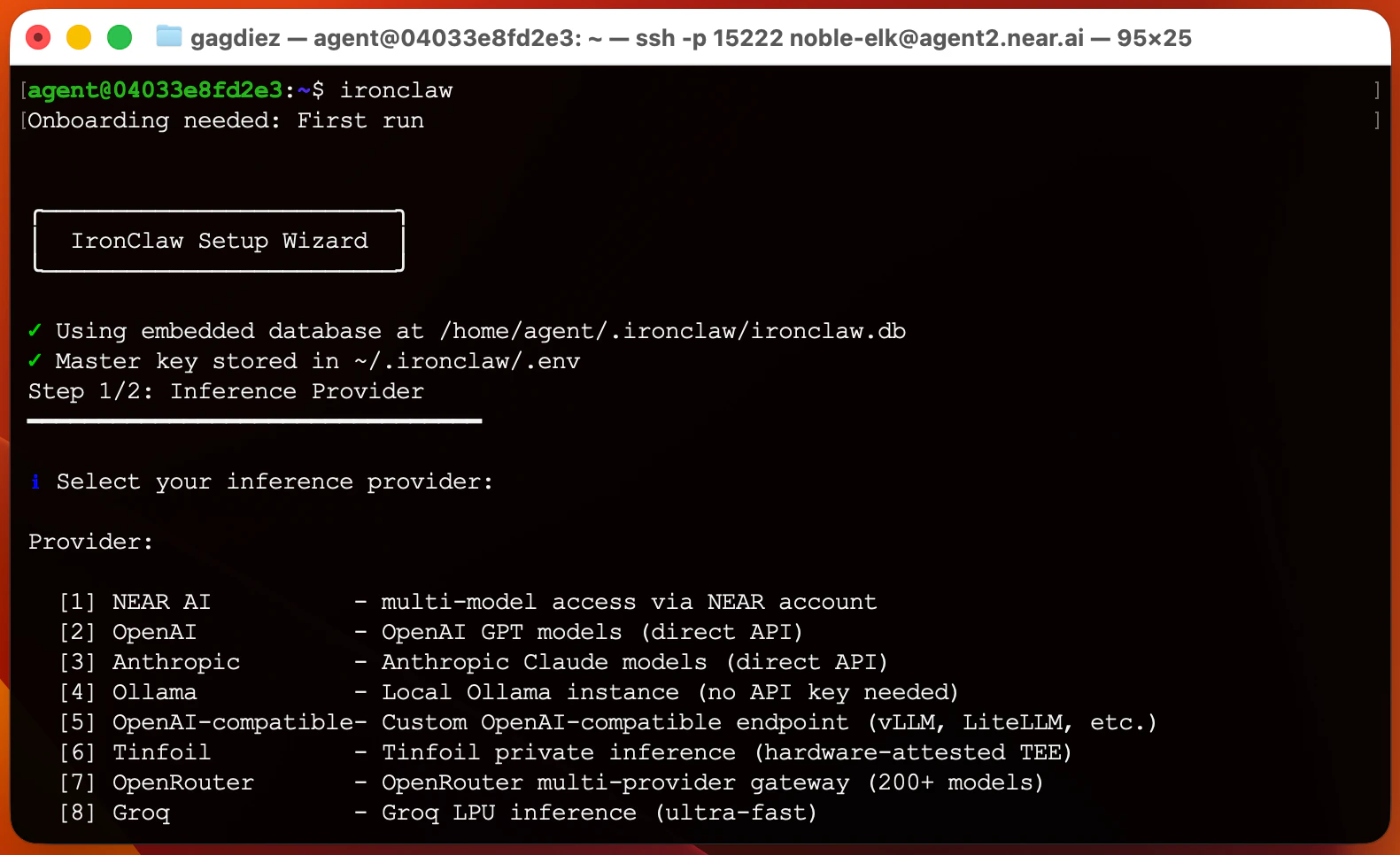 我们推荐使用 [NEAR AI](https://cloud.near.ai/) 作为推理提供商,以获得更高的隐私与安全性,并使用 `Qwen3-30B` 模型来兼顾效果与成本。
如果遇到错误 `Error: Channel webhook_server failed to start: Failed to bind to 0.0.0.0:8080: Address already in use (os error 98)`,请尝试设置一个不同的 HTTP 端口:
```
# 将默认 HTTP 端口改为 8081
export HTTP_PORT=8081
# 然后重新启动智能体
ironclaw
```
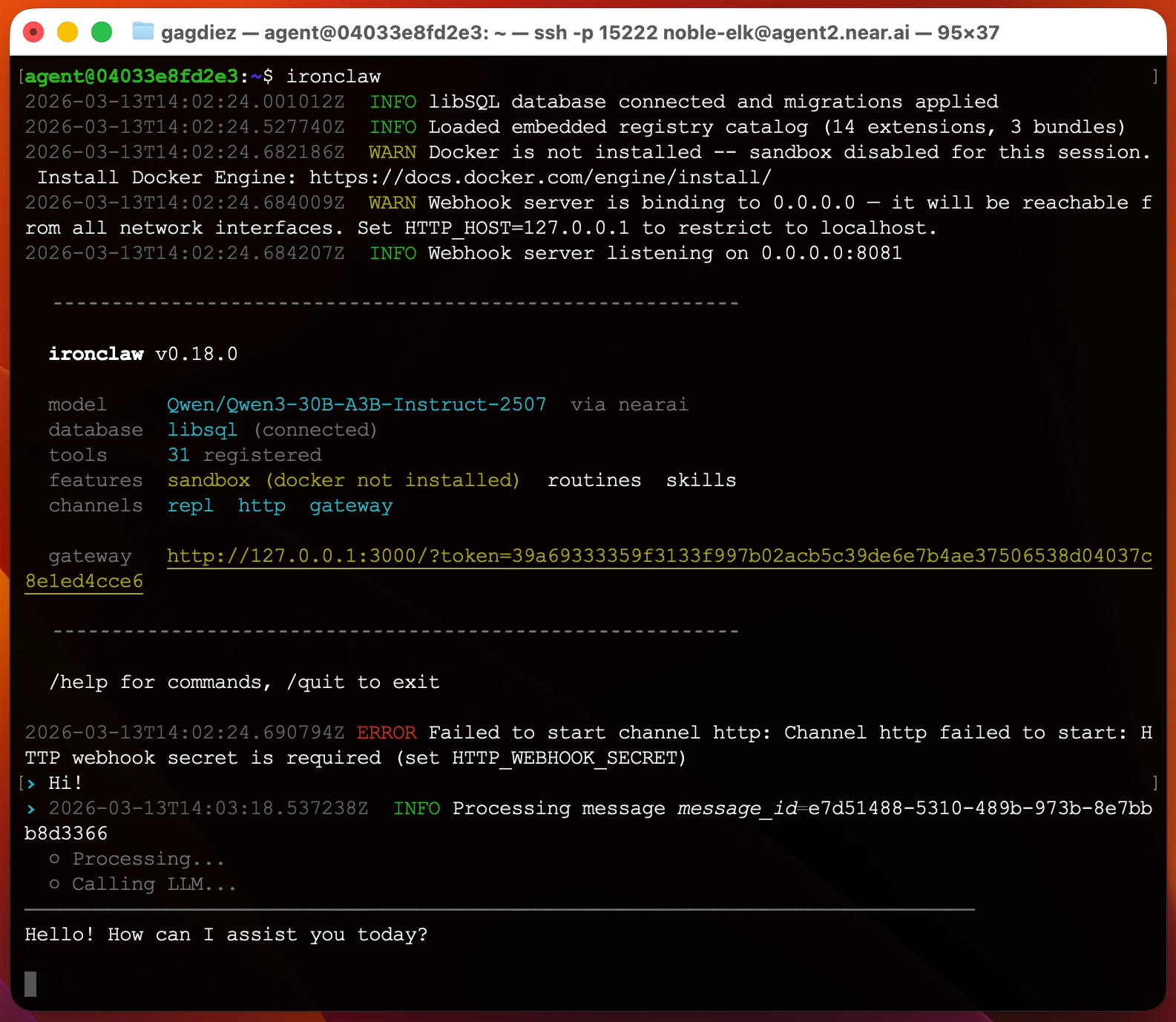
当智能体启动后,您就可以通过终端与它交互。直接输入消息,智能体就会回复。
我们推荐使用 [NEAR AI](https://cloud.near.ai/) 作为推理提供商,以获得更高的隐私与安全性,并使用 `Qwen3-30B` 模型来兼顾效果与成本。
如果遇到错误 `Error: Channel webhook_server failed to start: Failed to bind to 0.0.0.0:8080: Address already in use (os error 98)`,请尝试设置一个不同的 HTTP 端口:
```
# 将默认 HTTP 端口改为 8081
export HTTP_PORT=8081
# 然后重新启动智能体
ironclaw
```
当智能体启动后,您就可以通过终端与它交互。直接输入消息,智能体就会回复。
 最后,请定期更新 IronClaw,以获得最新功能和改进。您可以在终端中运行以下命令进行更新:
```bash theme={null}
ironclaw-update
```
***
## 下一步
现在您的智能体已经运行起来了,接下来可以配置新的[频道](./channels/telegram)以便通过您偏好的消息平台与它交互,并添加一些[工具](/extensions/web-search)来扩展能力。
将智能体连接到您喜欢的消息平台。
让智能体访问外部 API 与服务。
最后,请定期更新 IronClaw,以获得最新功能和改进。您可以在终端中运行以下命令进行更新:
```bash theme={null}
ironclaw-update
```
***
## 下一步
现在您的智能体已经运行起来了,接下来可以配置新的[频道](./channels/telegram)以便通过您偏好的消息平台与它交互,并添加一些[工具](/extensions/web-search)来扩展能力。
将智能体连接到您喜欢的消息平台。
让智能体访问外部 API 与服务。